What an owner does after the screen is connected: say yes or no to bookings, choose which adverts never show, and see the earnings. All on their own phone.
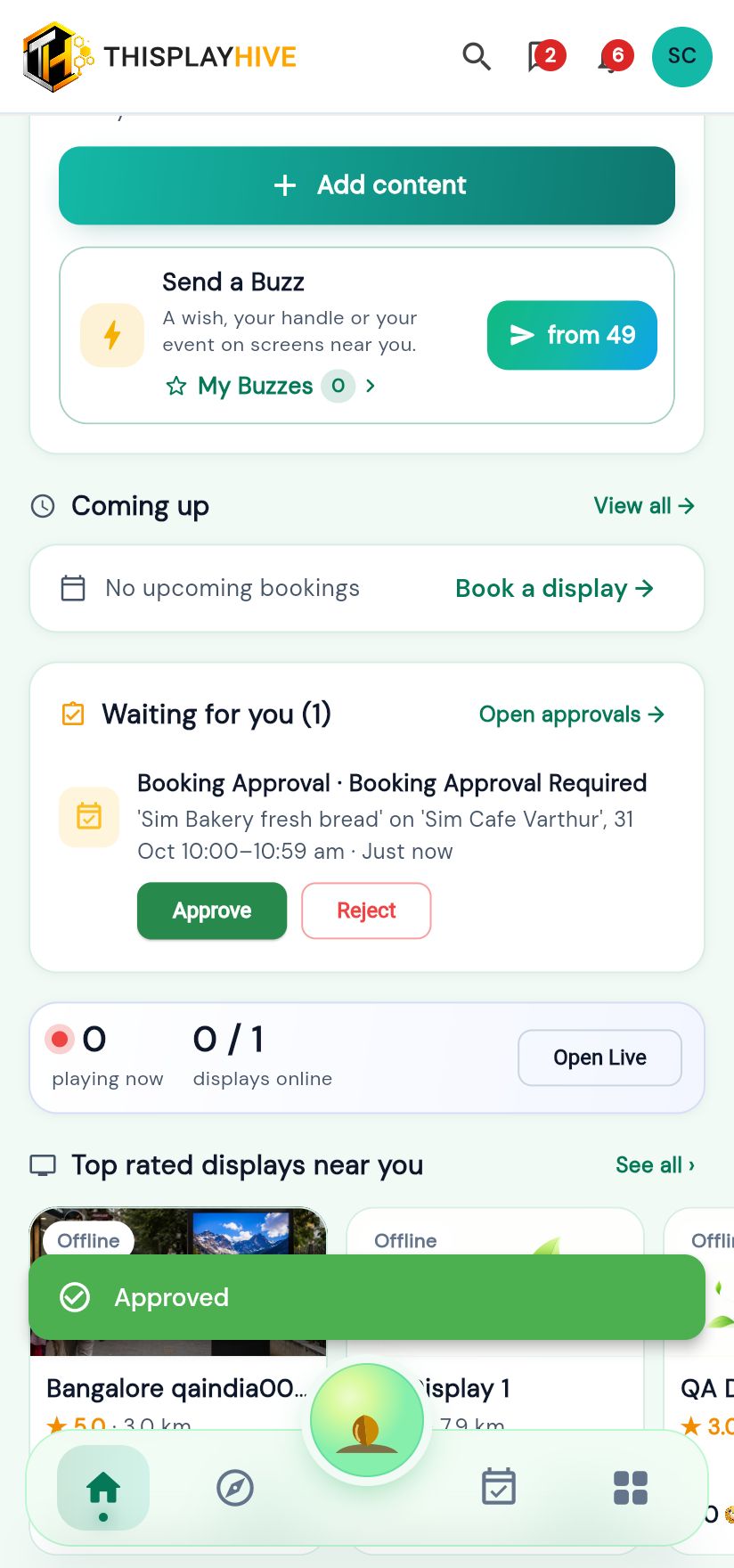
When an advertiser books the screen, Home shows it under "Waiting for you": which advert, which screen, the day and hour. A booking plays only after the owner says yes.
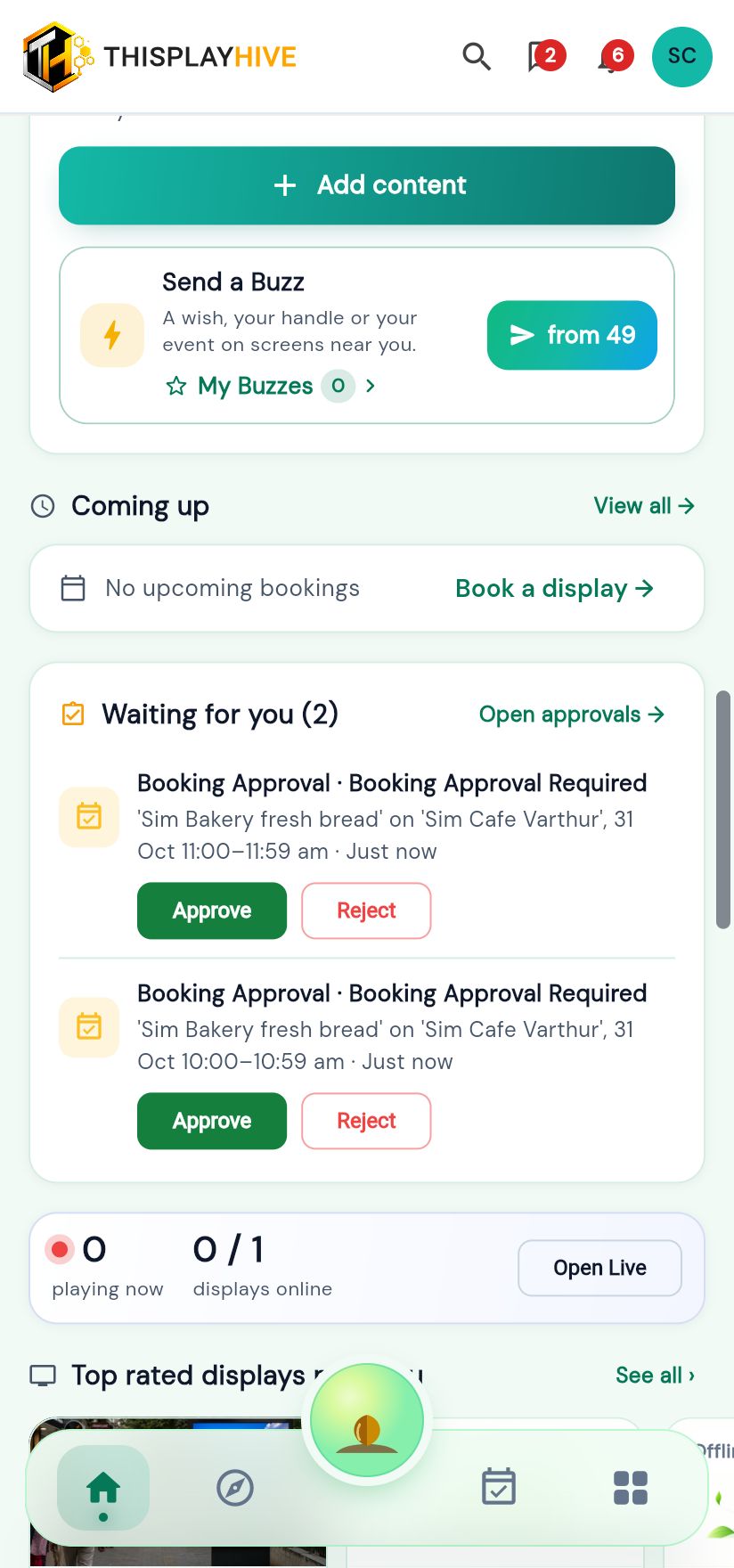
To accept, tap Approve. The app says "Approved" and the advert plays at the booked hour.
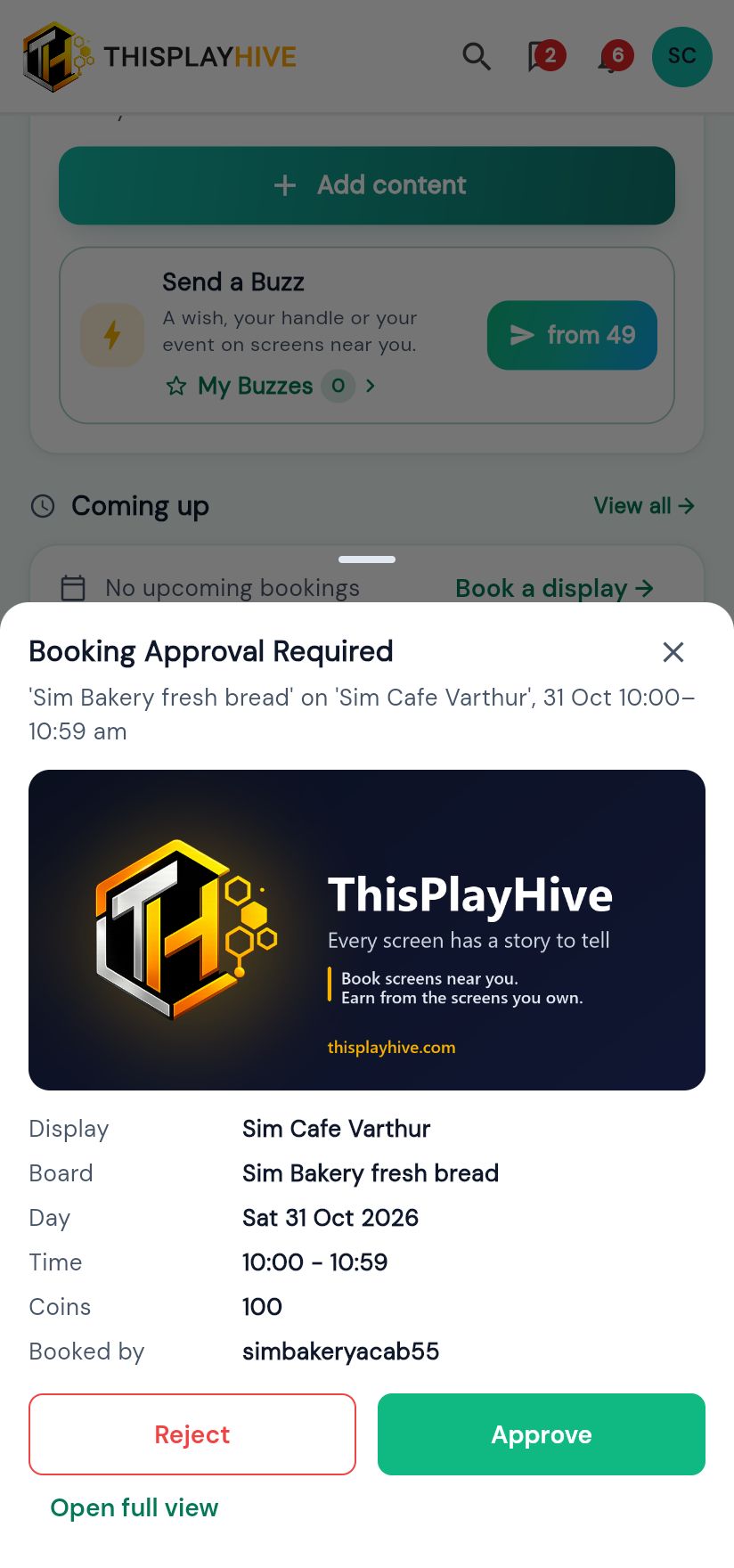
To say no, tap Reject. The request opens with its details (the advert, the day and hour, the coins), so the owner can look before deciding.
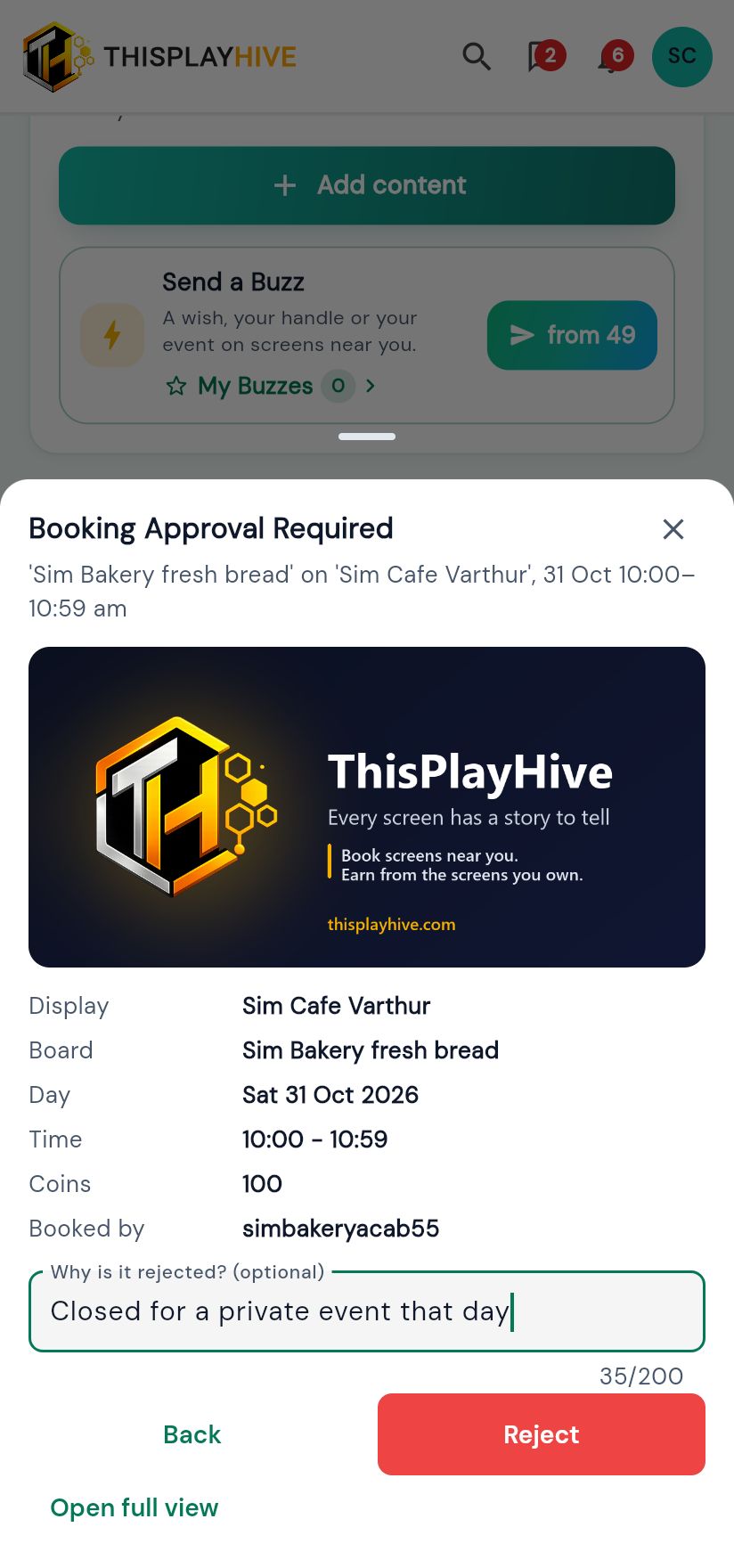
Write a short reason (the advertiser sees it) and tap Reject. Back keeps the request open.
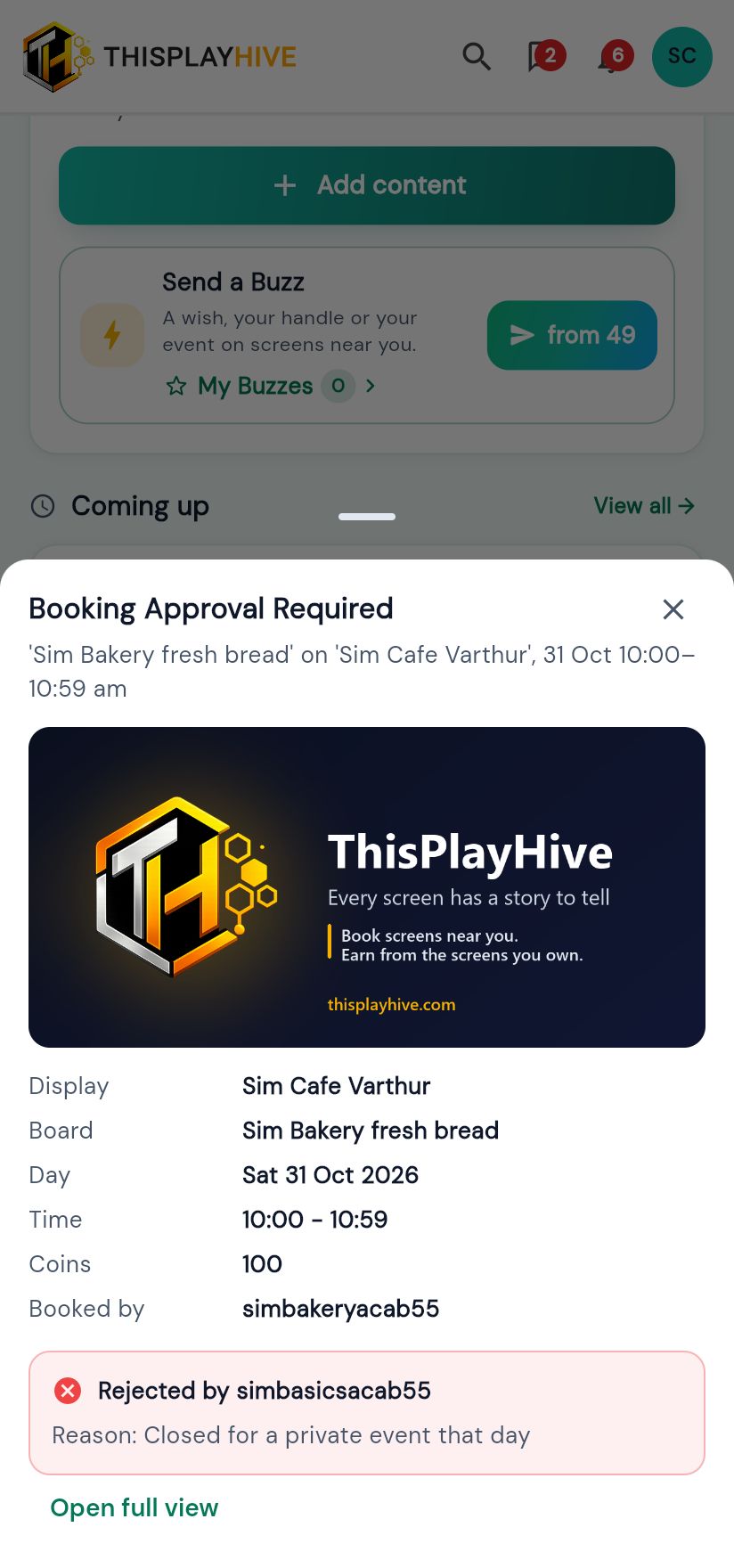
Rejected, with the reason. The advertiser gets their coins back and nothing plays.
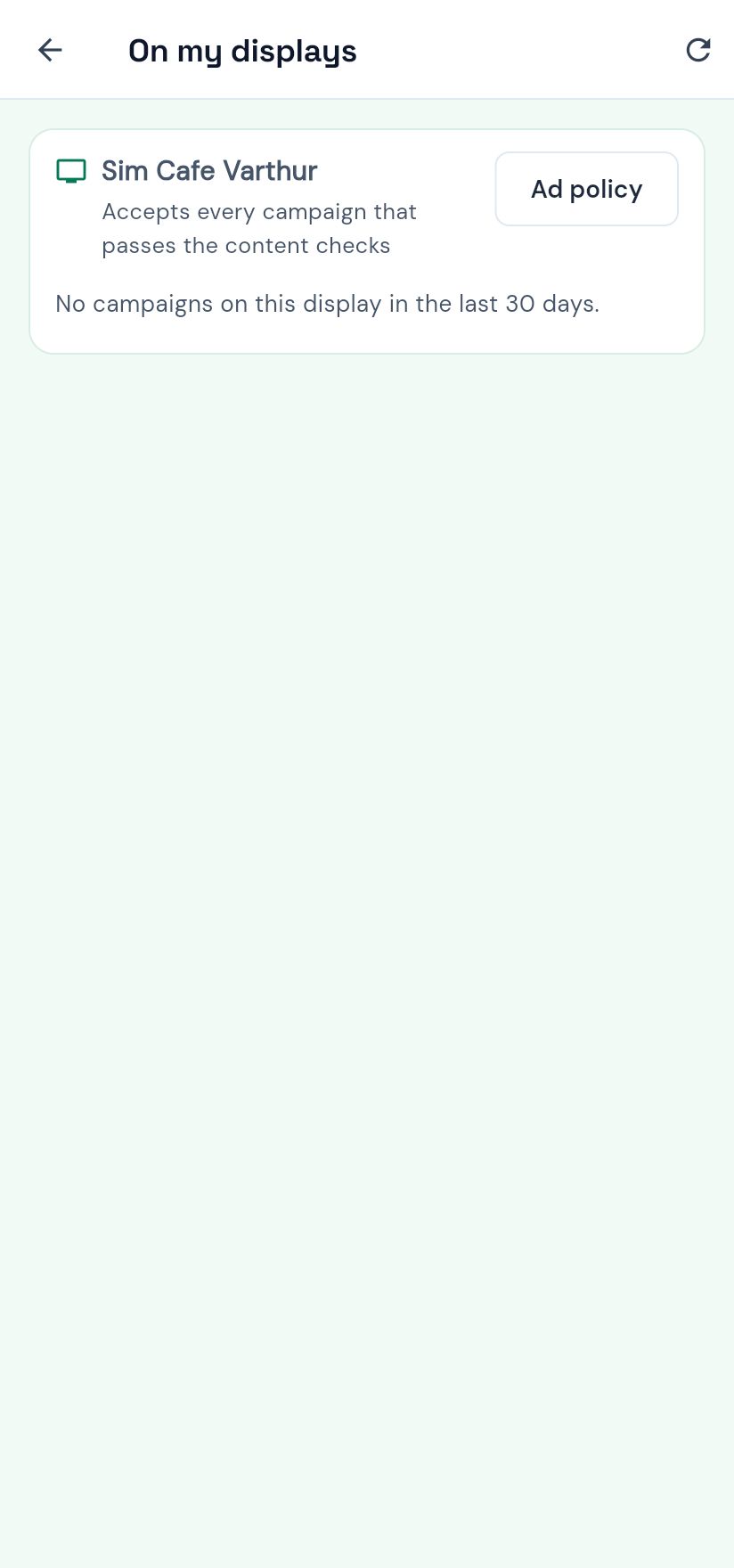
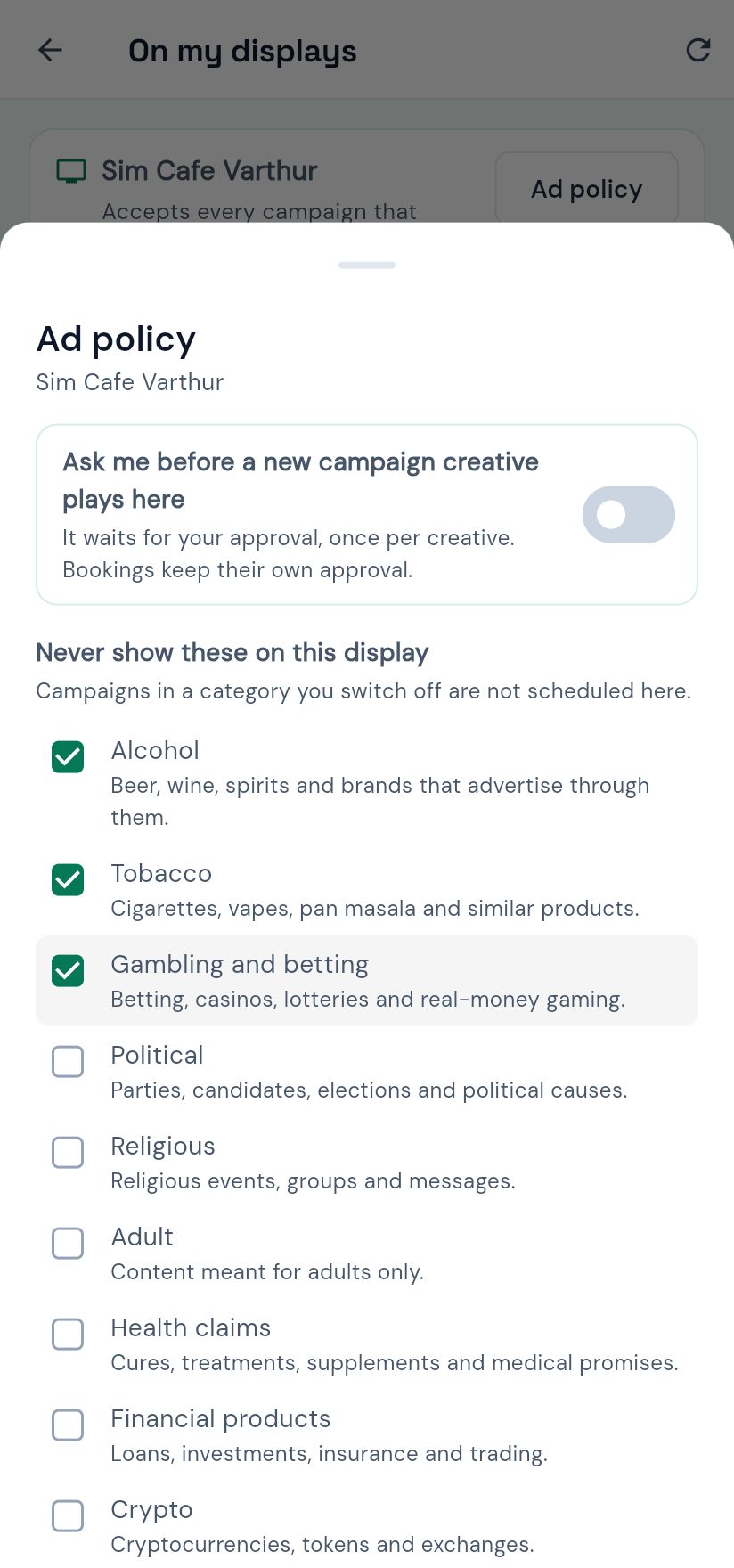
Tap More (bottom right), then Campaigns, then "On my screens". Each screen shows what it accepts. Tap "Ad policy".

Tick what must never show on this screen, for example alcohol or tobacco. Turn on "Ask me before a new campaign creative plays here" to see each new advert first. Then tap "Save ad policy" at the bottom.

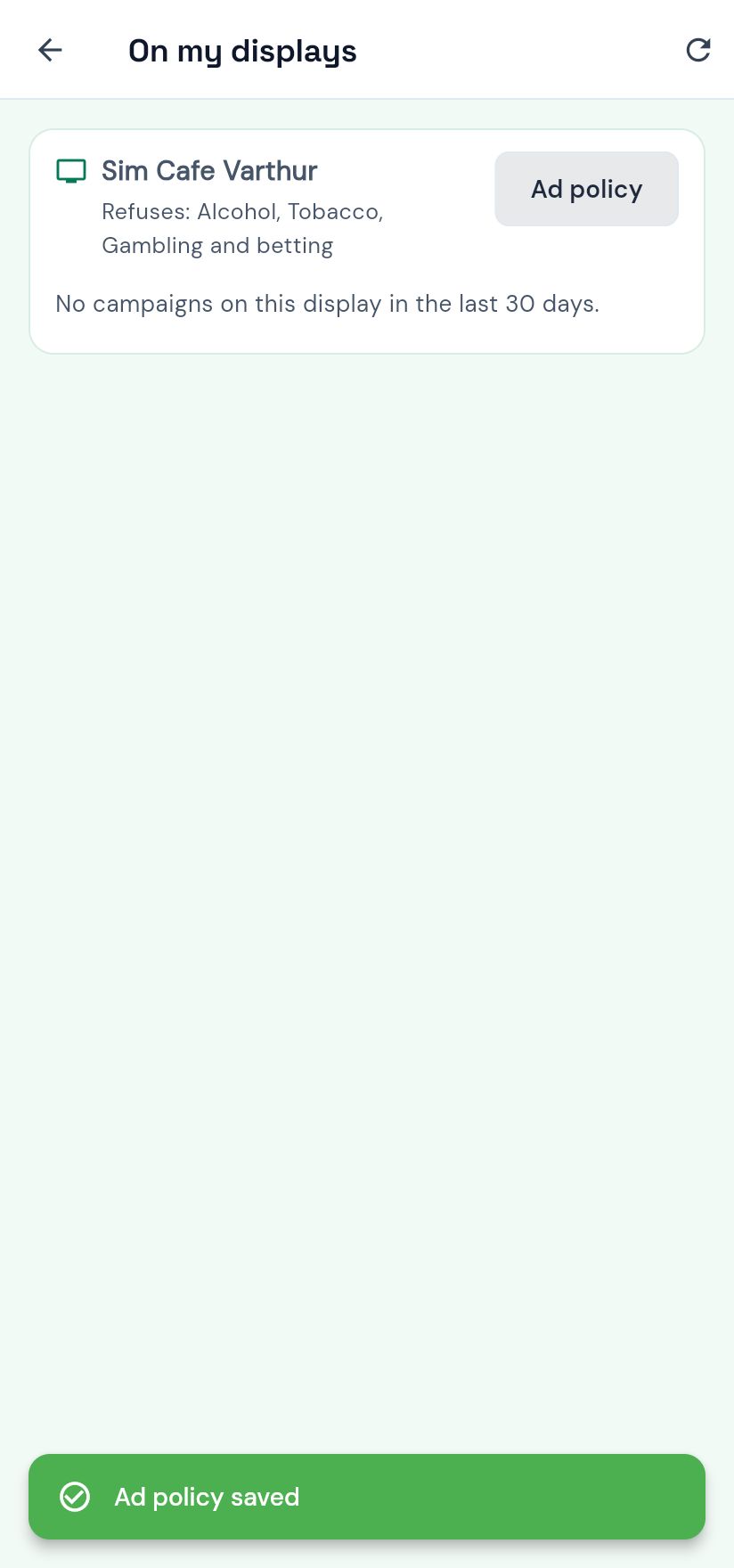
Saved. The screen's line now says what it refuses; campaigns in those categories are not scheduled on it.

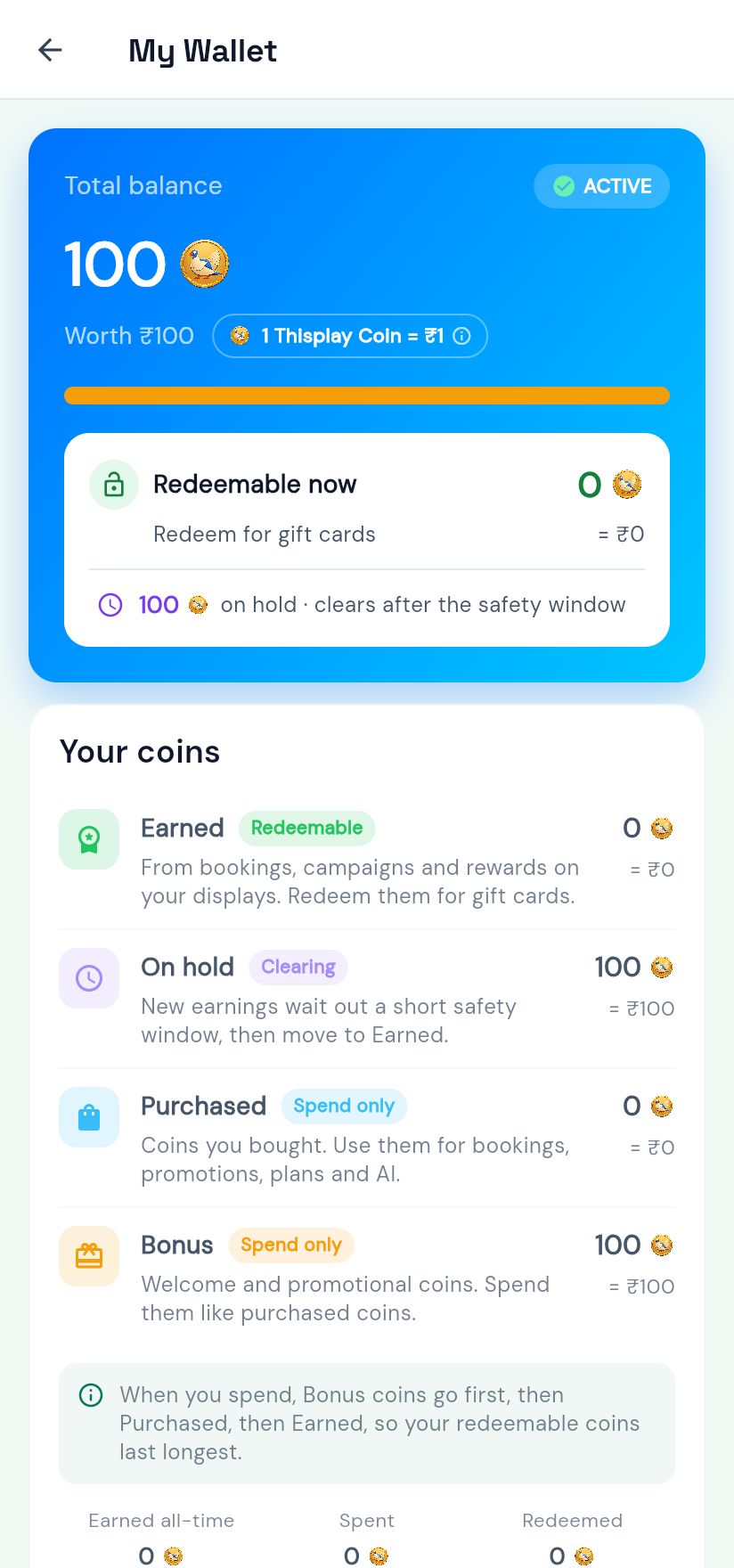
Tap More, then Finance, then Wallet. After an advert plays, the owner's share shows as "On hold" first: it waits out a short safety window, and stays held until the screen passes its photo check. Then it moves to "Earned" and can be redeemed for gift cards.