Connect a screen

What the owner sees, step by step, on their own phone. About 10 minutes, standing at the TV.

1. Make the account

  1. The owner opens your link (or scans the QR on your card). It says who invited them. They tap "Create your account or sign in".
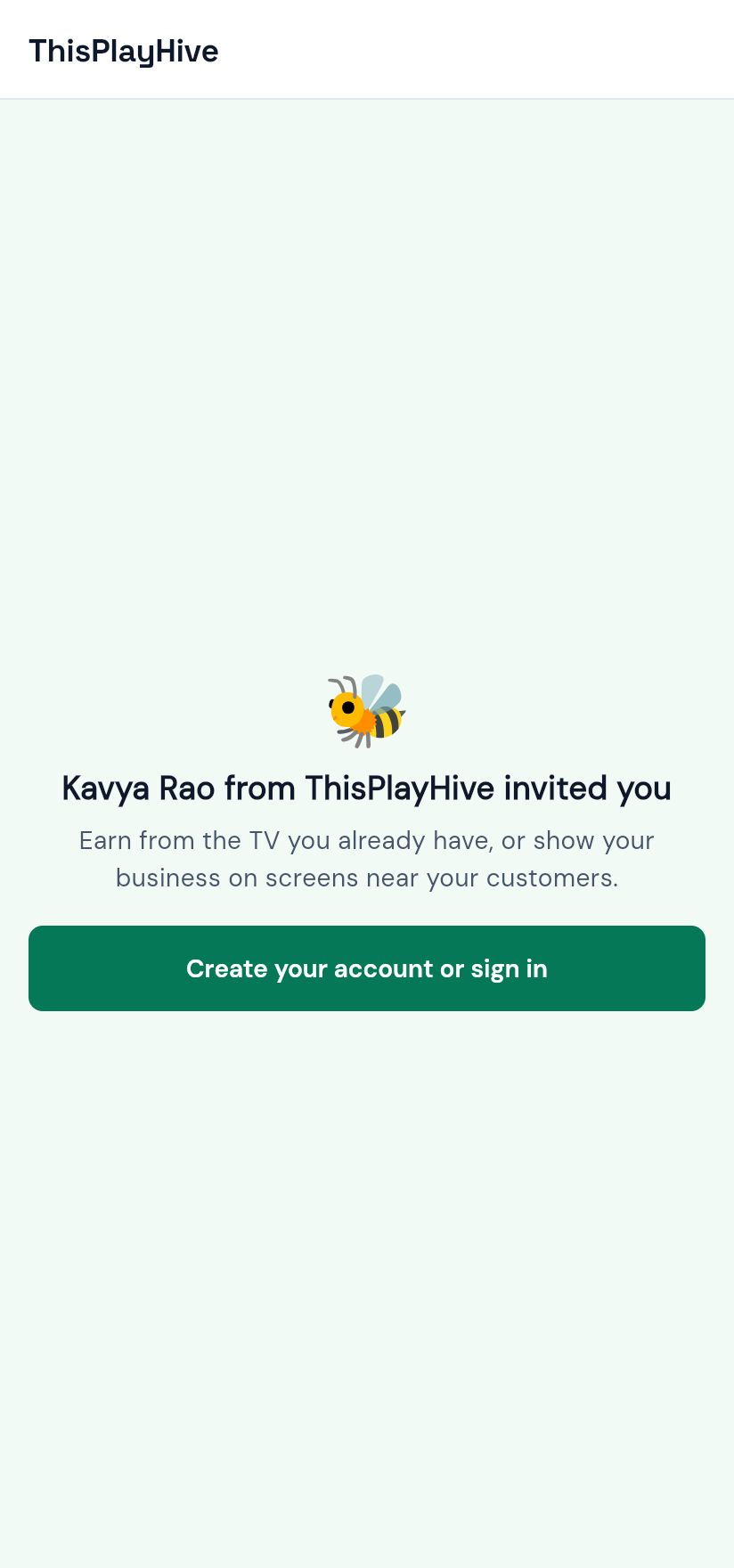
    Invitation page with Create your account or sign in
  2. They tap "Create a free account" at the bottom of the sign-in page.
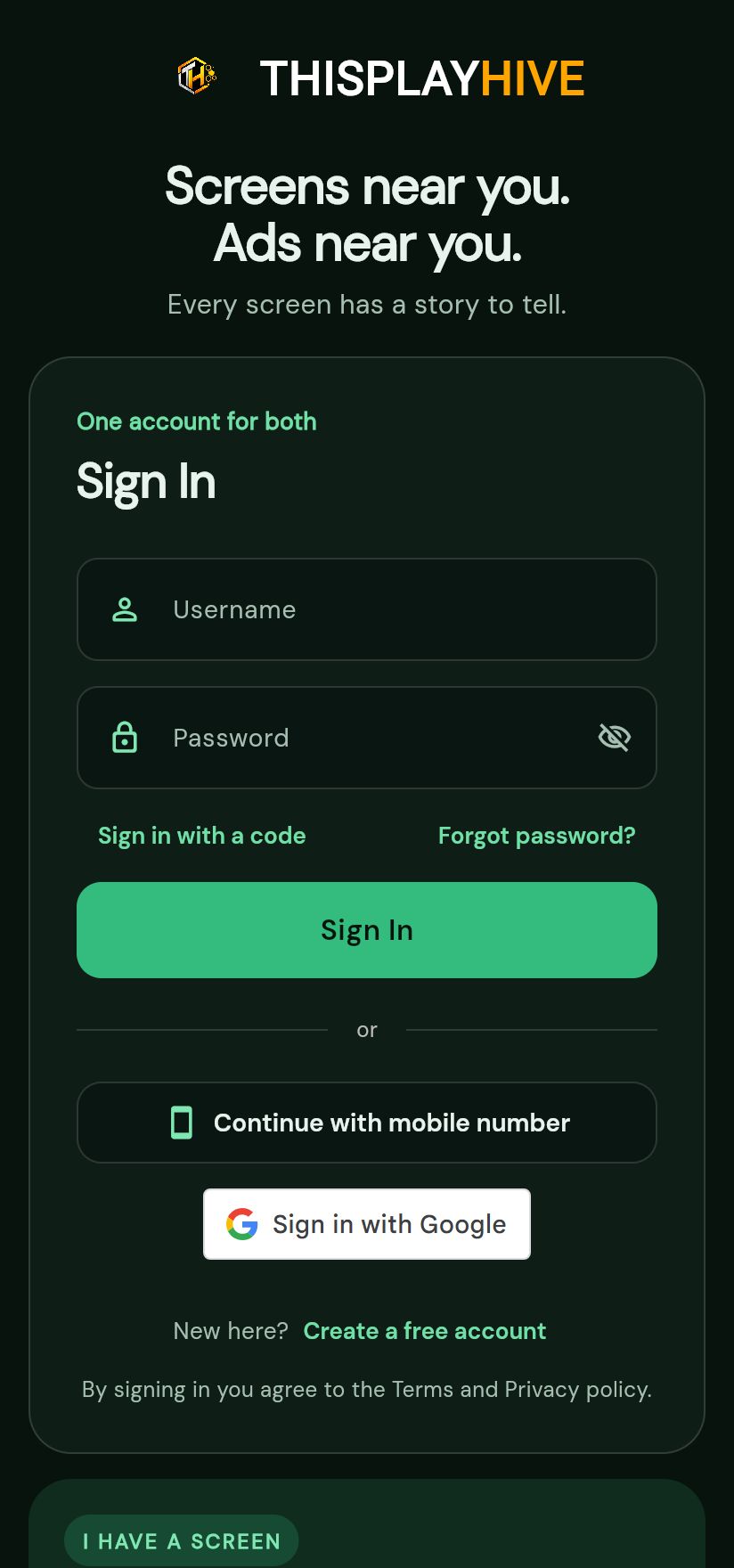
    Sign-in page
  3. They choose a username, give their email and a password (twice), then tap "Create Account".
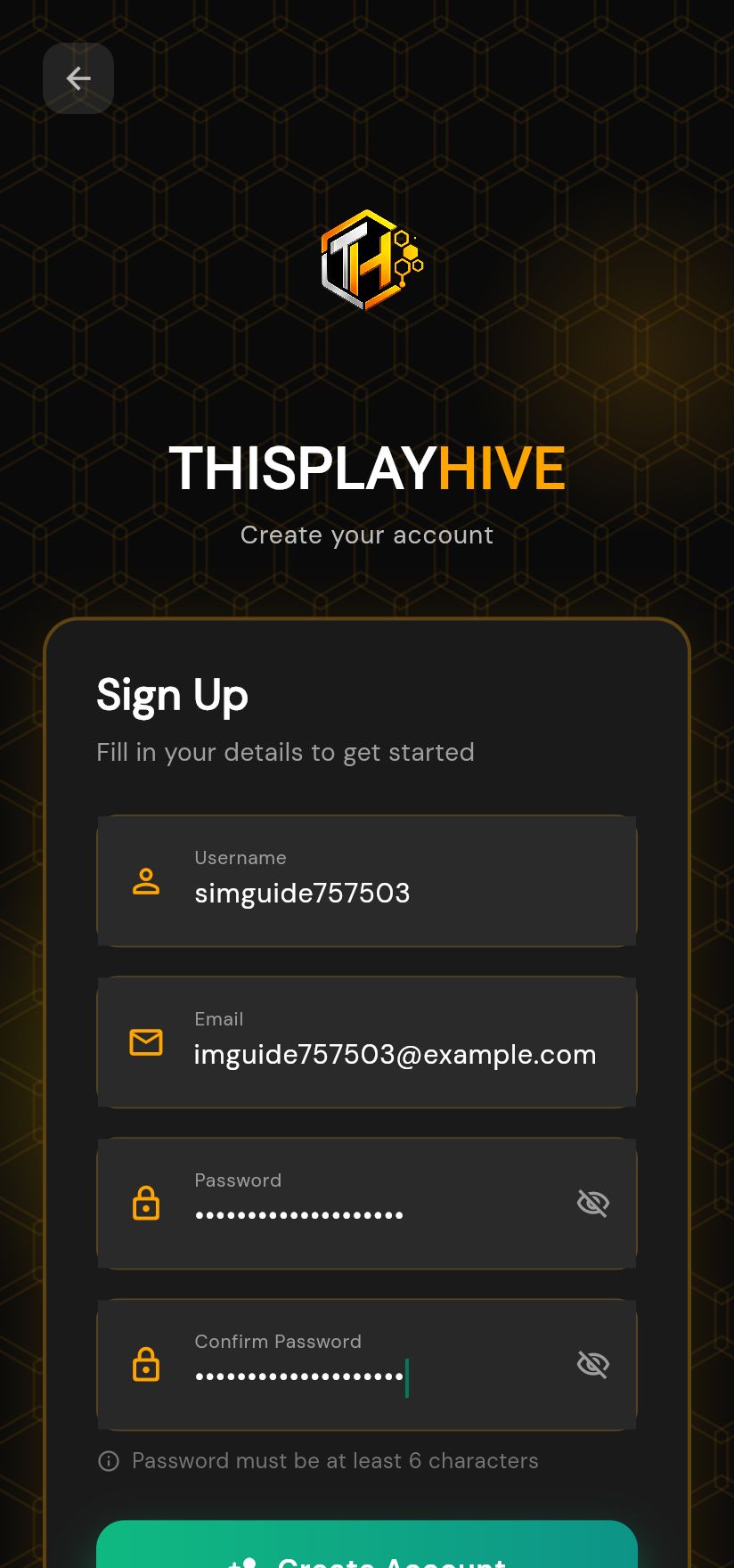
    Sign-up form
  4. They sign in with the new account. Home opens. They tap "Add your screen".
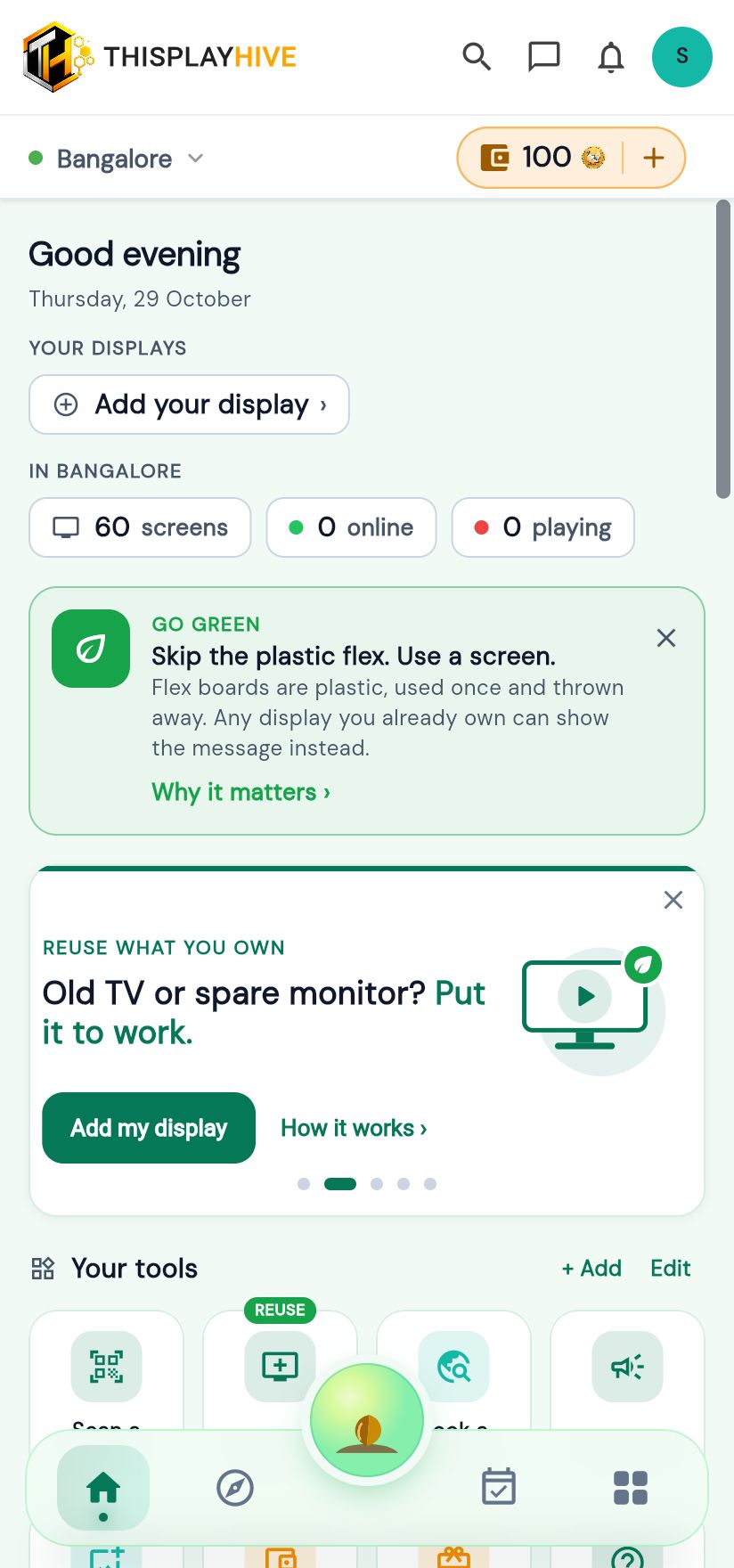
    Home with Add your screen

2. List the screen (5 steps)

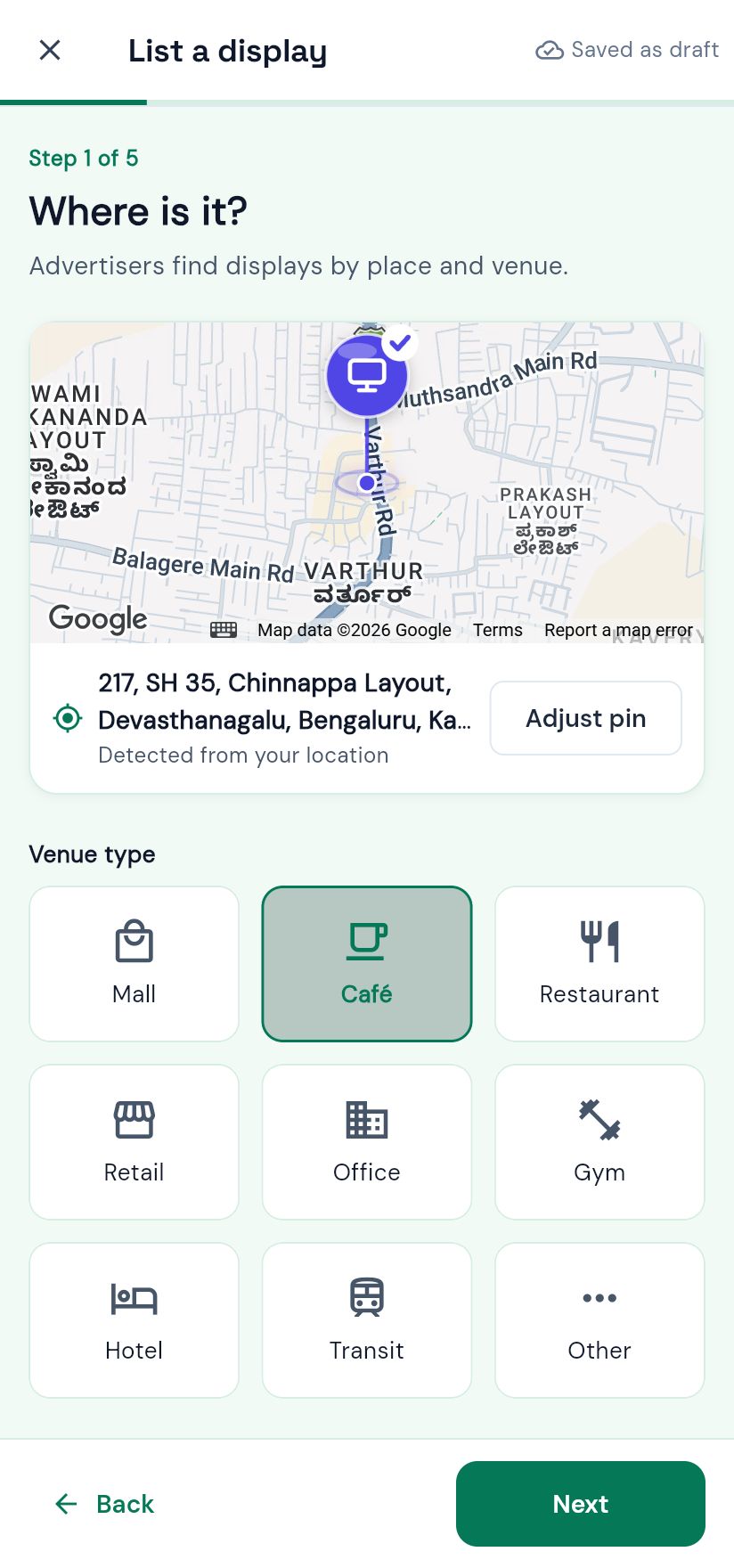
  1. Where is it: the pin comes from the phone (tap "Adjust pin" if it is off). Pick the kind of place, then Next.

    Step 1 of 5, Where is it
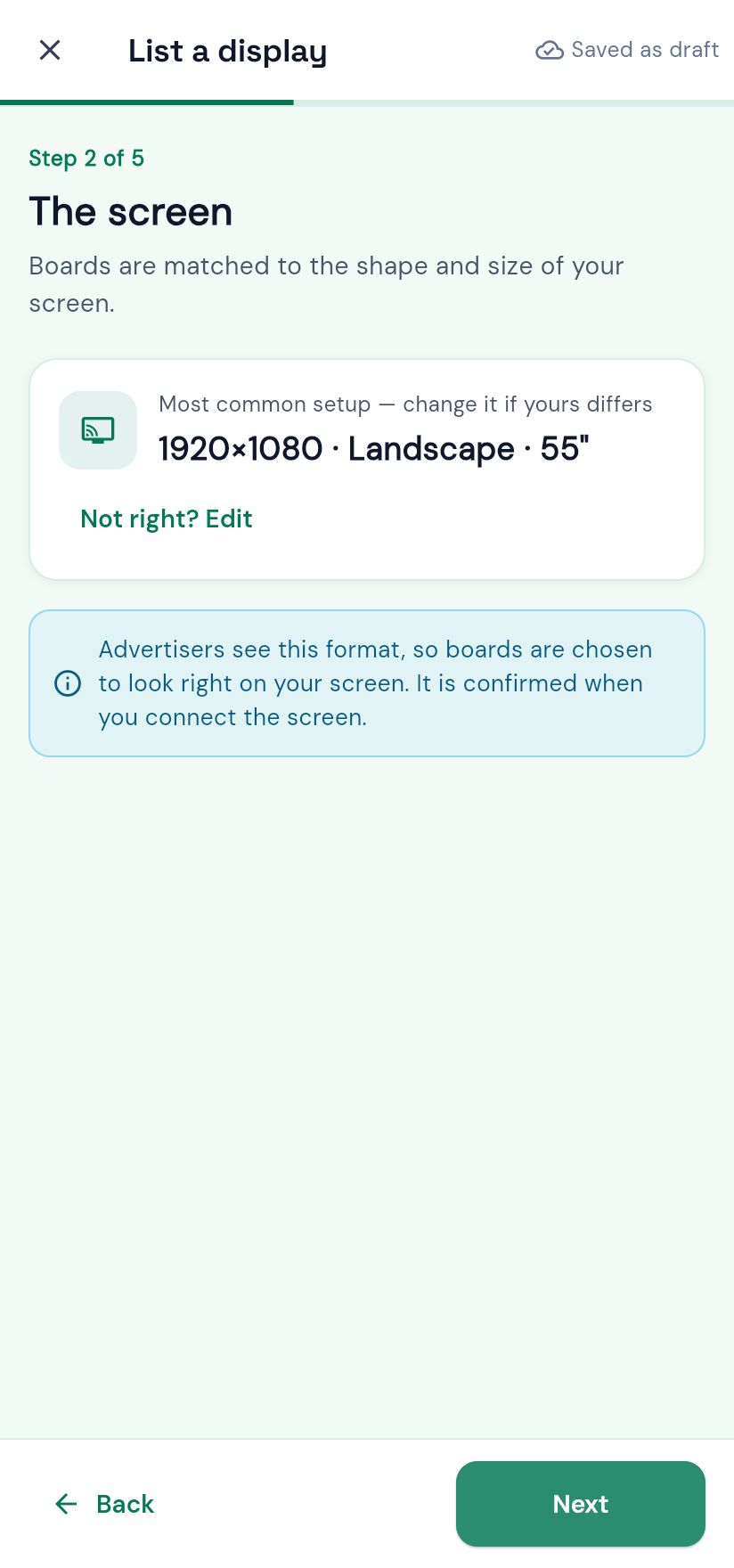
  2. The screen: size and direction. Tap "Not right? Edit" if it is not a 55-inch landscape TV. Next.

    Step 2 of 5, The screen
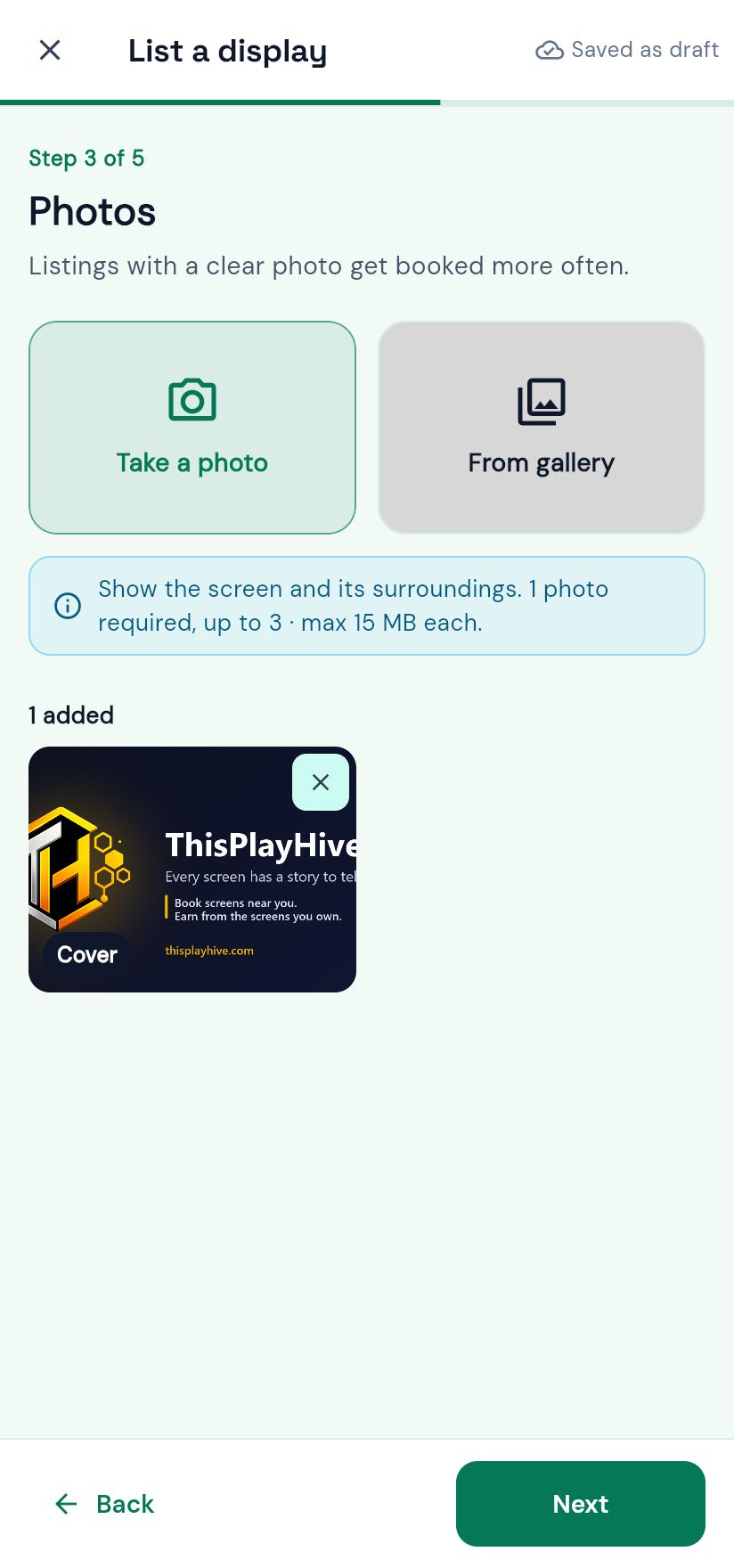
  3. Photos: a clear photo of the screen where it hangs ("Take a photo" or "From gallery"). Next.

    Step 3 of 5, Photos
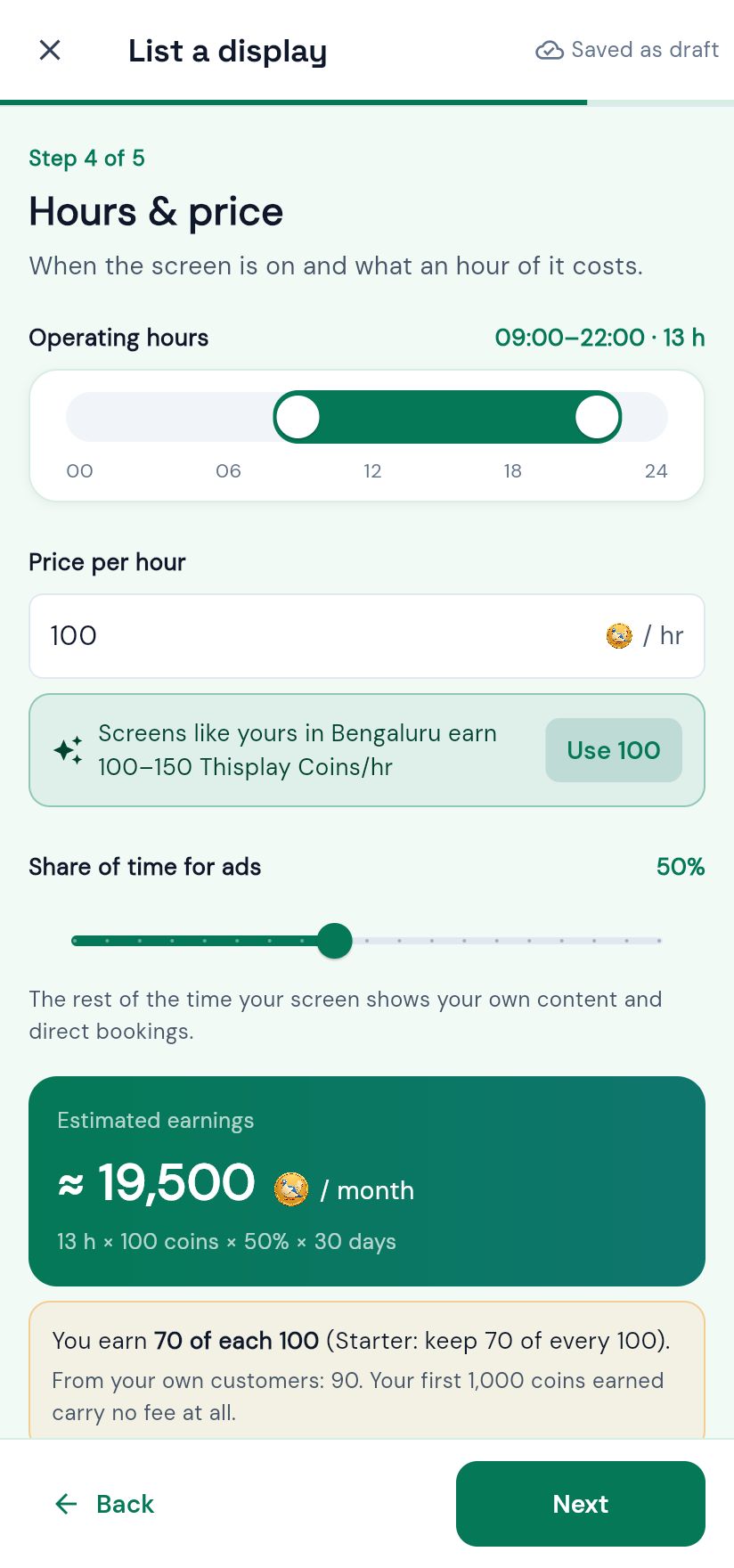
  4. Hours and price: slide the hours the screen is on. Type a price per hour, or tap "Use" for what screens like it nearby earn. Next.

    Step 4 of 5, Hours and price
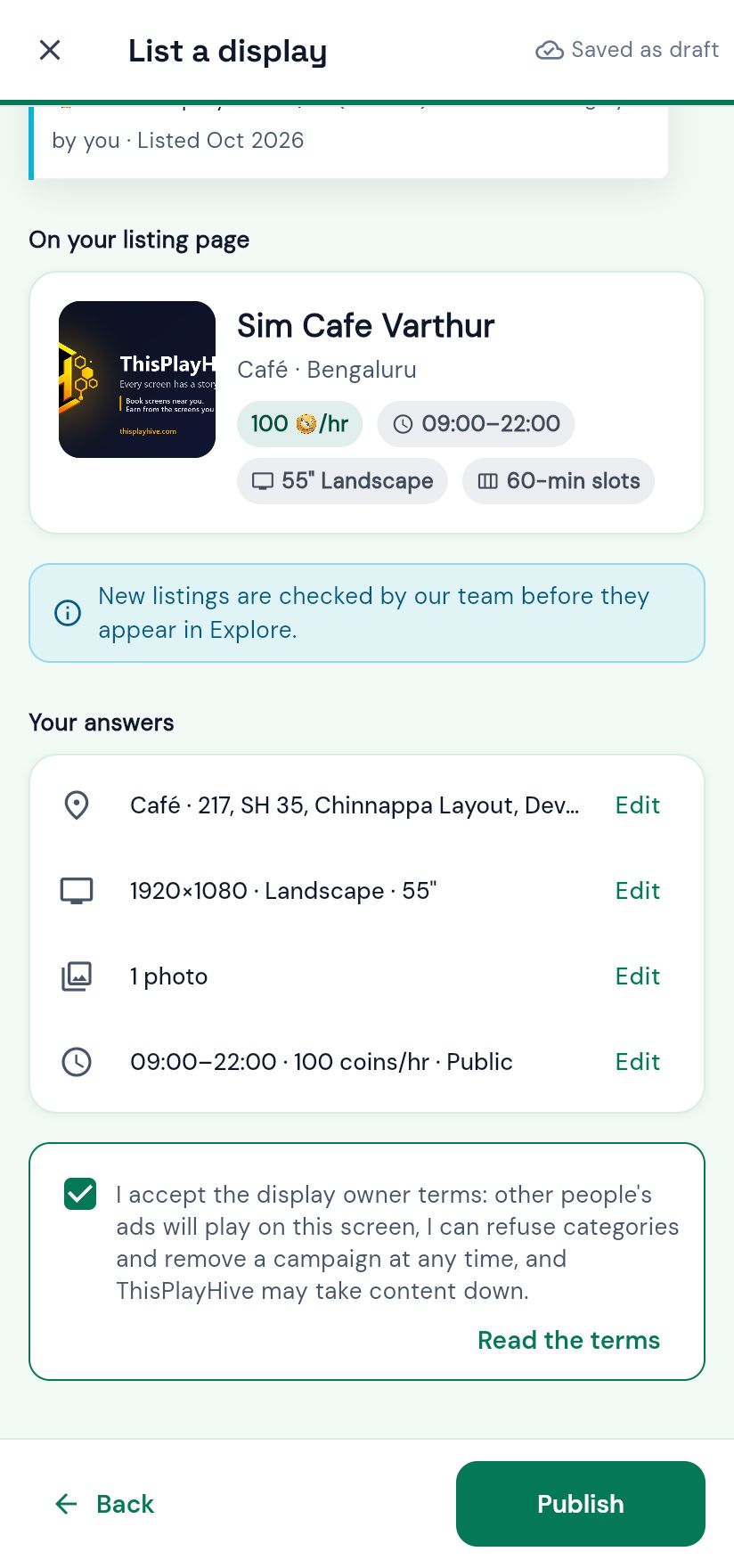
  5. Preview: check the name, tick "I accept the screen owner terms" at the bottom, then tap Publish.

    Step 5 of 5, Preview
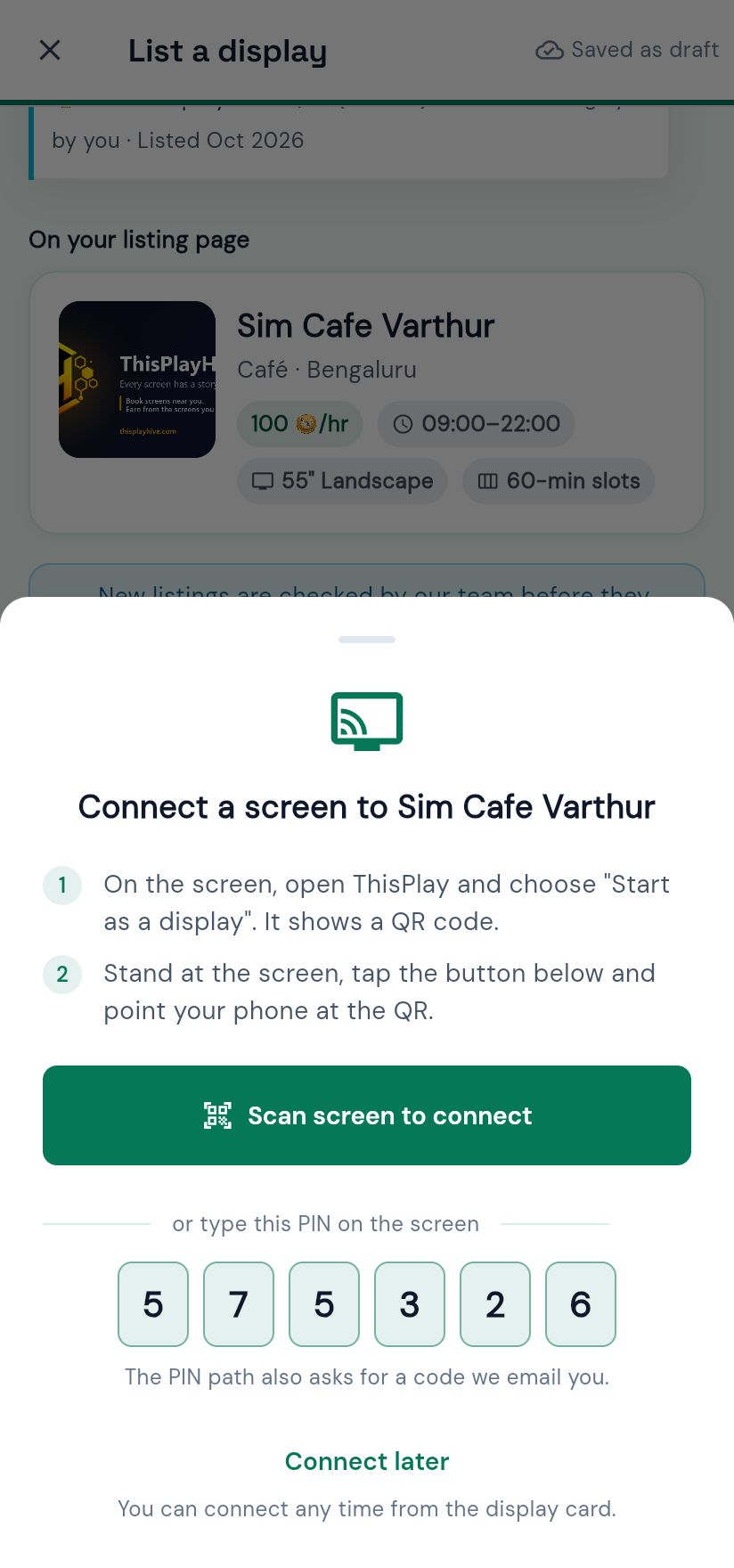
  6. Published. Our team checks each new listing; the TV can connect once it is approved. If the phone says "Waiting for approval", try again a little later.

    Connect a screen sheet after Publish

3. Connect the TV

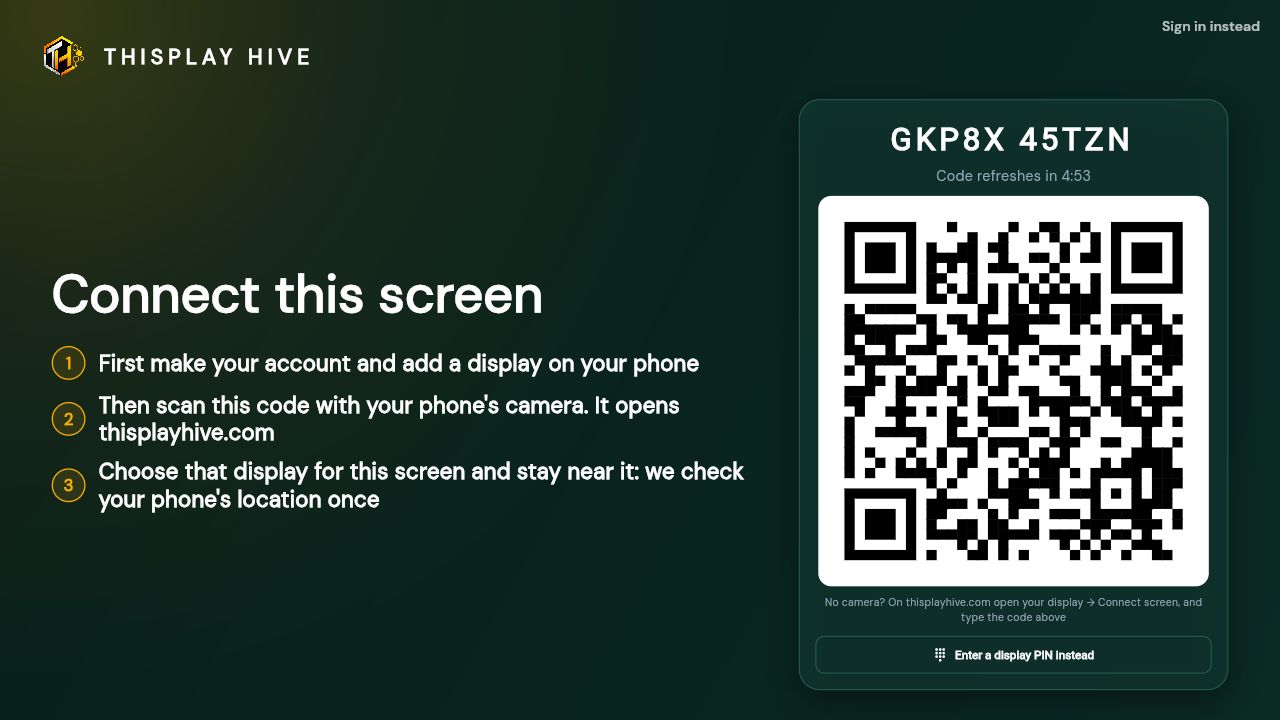
  1. On the TV: open the browser and go to thisplayhive.com/tv. A code and a QR show.

    TV page with a 10-character code and a QR
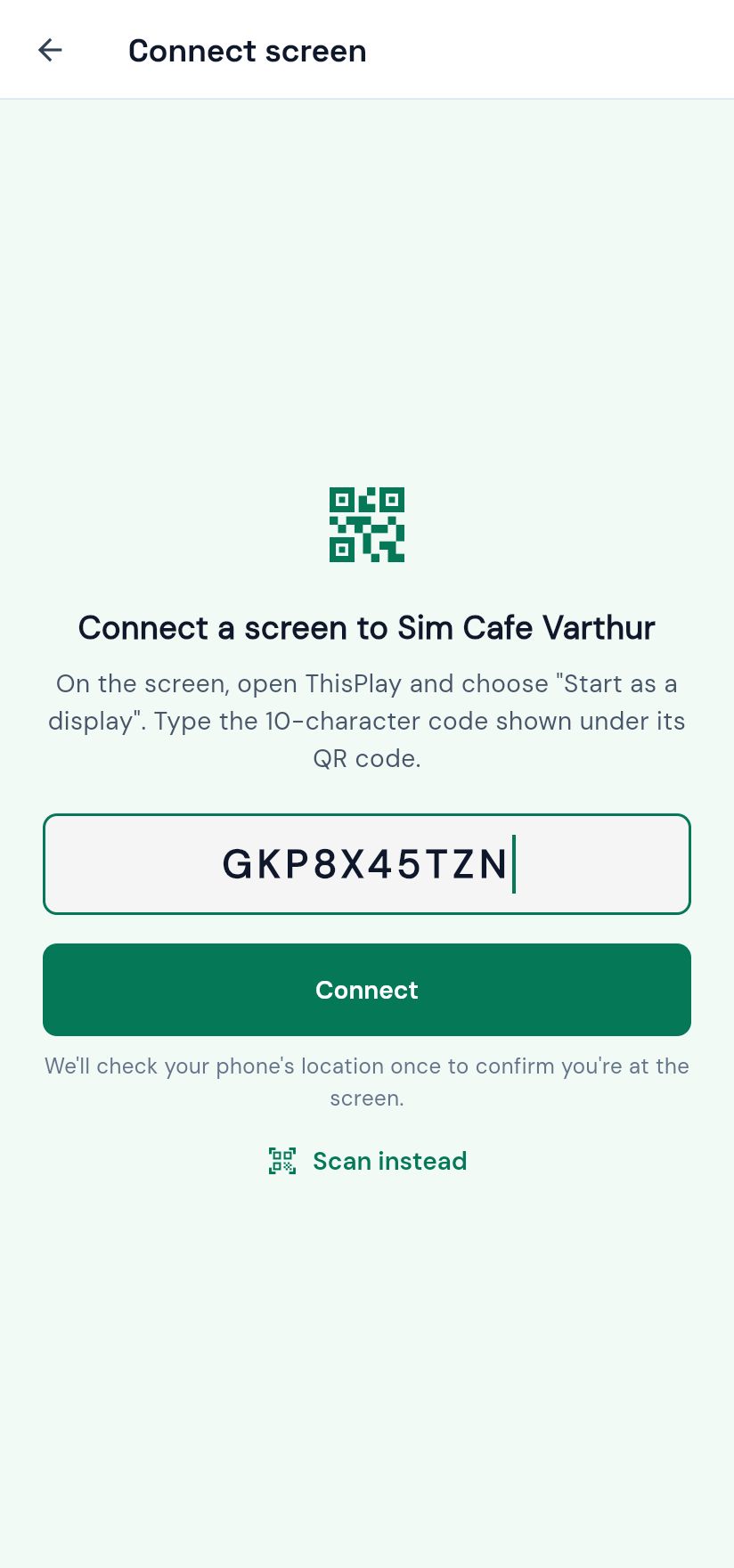
  2. On the phone: tap "Scan screen to connect" and point the camera at the QR on the TV. If the camera won't scan, tap "Can't scan? Type the code instead", enter the 10 characters shown on the TV and tap Connect.

    Code typed on the phone
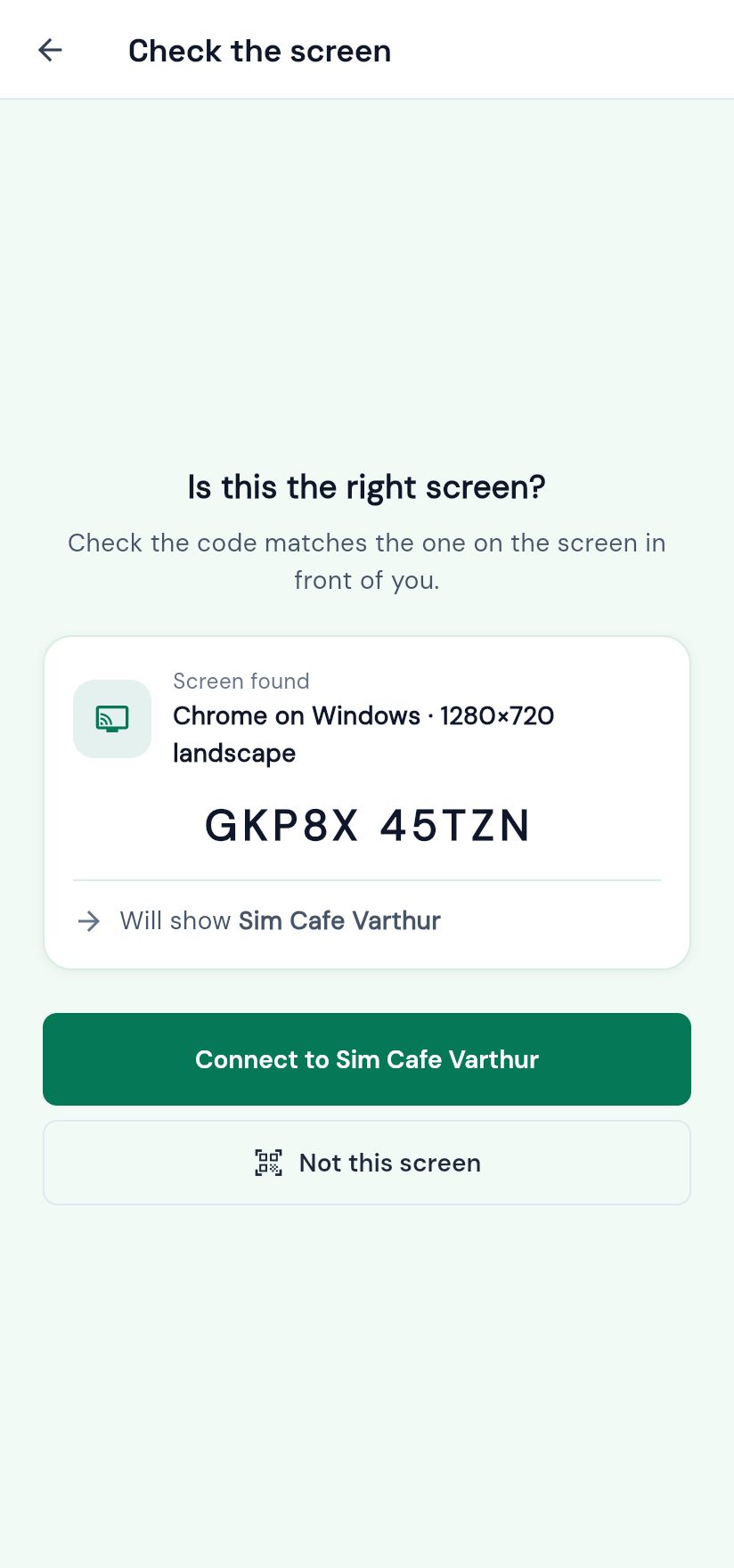
  3. Check the code matches the TV, then tap "Connect to <your screen>". Stay near the TV: the phone's location is checked once.

    Is this the right screen?
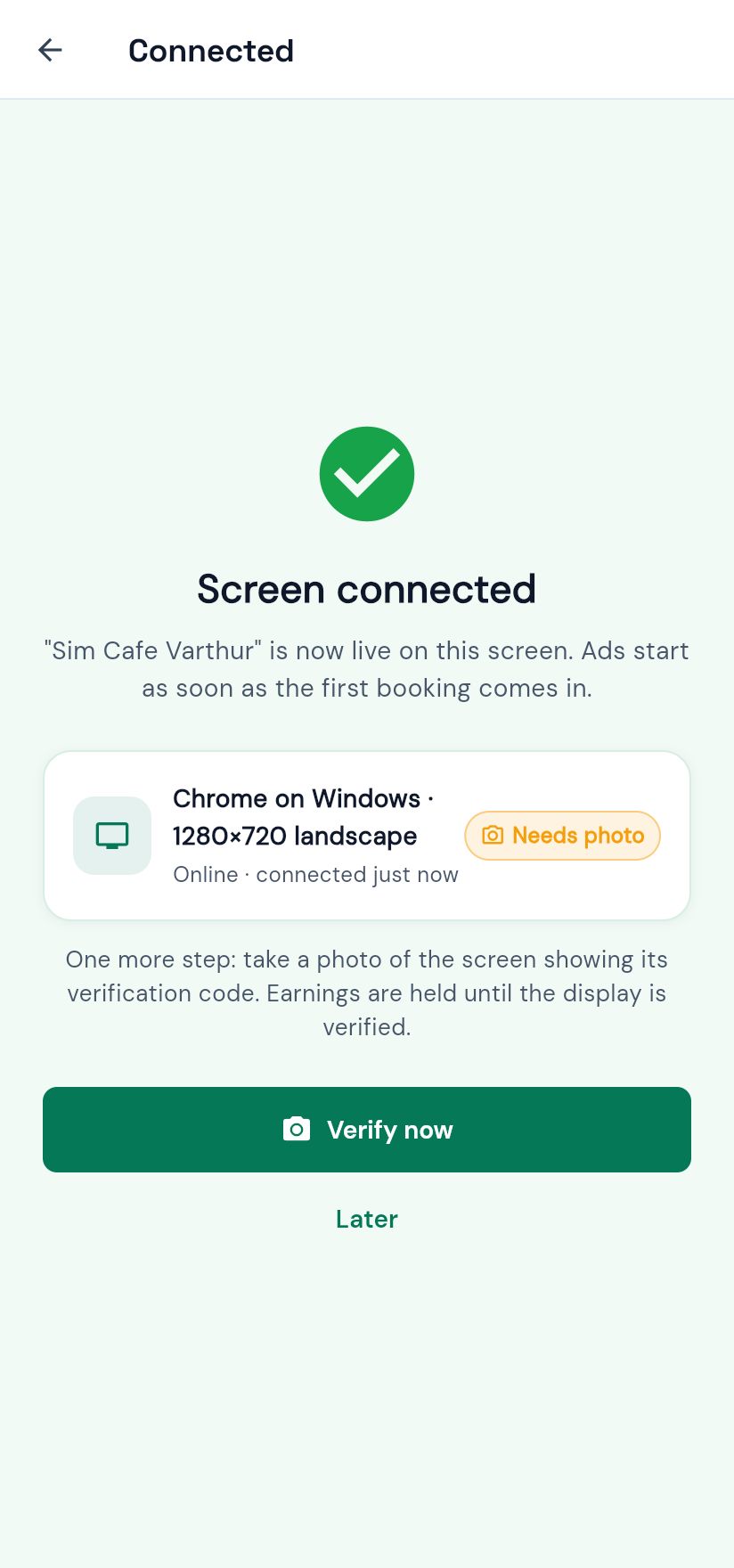
  4. Screen connected. One more step, the photo check: tap "Verify now" and take a photo of the TV showing its code. Earnings are held until the screen is verified.

    Screen connected, Verify now
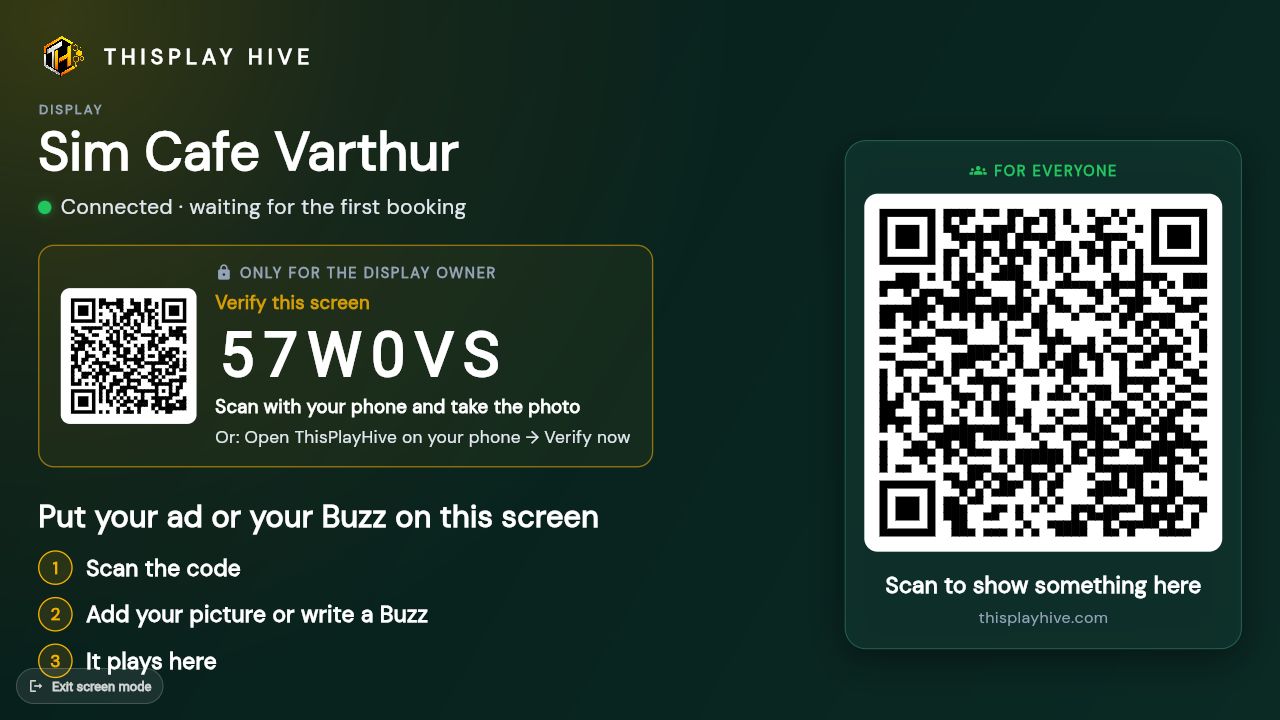
  5. The TV now shows the screen's name, "Connected", and the code for the photo check. Our team approves the photo; then the screen is verified and can be booked.

    TV connected with the verification code